How to Turn Sketches into Animated Video Scenes
A sketch has a particular kind of charm that finished artwork often loses, visible pencil strokes, a slightly rough edge, the sense that the artist’s hand is still present in every line. That charm is exactly what’s worth protecting when adding motion, rather than smoothing it into something cleaner and more generic. Image to video tools now make it possible to animate a sketch while keeping that texture intact. Dreamina, running on its most advanced video generation model, Seedance 2.5, gives illustrators a way to bring a rough drawing to life without losing what made it feel handmade.
Why a sketch was never quite as static as it looked
A sketch often captures a scene with a kind of energy that a polished piece doesn’t always have — quick lines suggesting wind, loose shading implying movement, a sense of something caught mid-thought before it was ever finished. Animating the sketch lets that suggested energy actually happen instead of staying implied by the linework alone.
What makes a sketch animation feel true to the original
A handful of things separate a sketch animation that still feels handmade from one that quietly turns into something else. The motion needs to respect the sketch’s linework rather than smoothing it away. Small, subtle movement — drifting clouds, gentle water, a light breeze — tends to work far better than anything dramatic. And the shading should stay consistent with the original medium, whether that’s graphite, charcoal, or ink.
Adding life to your drawing using Dreamina
Step 1: Upload the drawing and describe the movement
Launch Dreamina, go to the “AI Video” tab and then upload your drawing using the option “Add reference image”. Describe how the drawing will move.
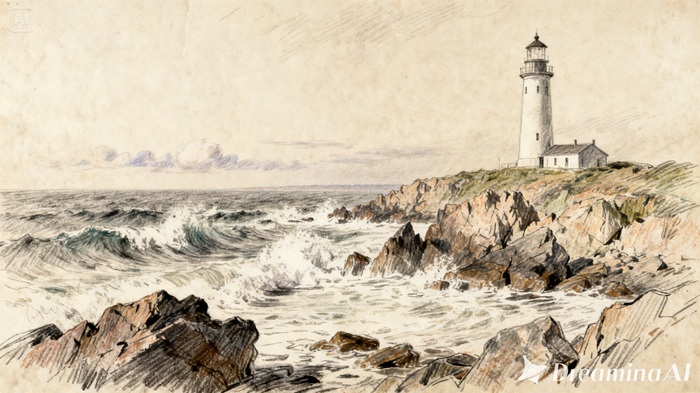
Here is an example of a 30 second animation: “Based on this lighthouse drawing, create a 30 second animation in which waves are flowing gently around the rocks, clouds are moving in the sky, and the light at the top of the lighthouse is flickering in a subtle way, while preserving the pencil drawings.”
Step 2: Generate with Seedance 2.5
Pick the Seedance 2.5 model, choose your video length, then select an aspect ratio — 16:9 for a portfolio piece, 9:16 for social sharing. Tap Dreamina’s generate icon and let the sketch take shape.
Step 3: Refine and export the finished piece
Run it through Dreamina’s editing tools first — Upscale adds finer linework detail, Generate Soundtrack lays down a gentle ambient layer — then export and share it as a finished animated sketch.
What Seedance 2.5 brings to sketch motion
Seedance 2.5, Dreamina’s most advanced video generation model, is especially well suited to preserving loose, texture-heavy art styles.
Sketch energy carried into motion
Style-aware creative transfer carries the original linework and emotional tone into the animation, so the piece still feels like the same rough, energetic sketch rather than a cleaned-up version of it.
Graphite and ink that stay authentic
Reduced “AI look” keeps pencil or ink texture looking genuine rather than digitally smoothed, preserving the handmade quality that made the sketch worth animating in the first place.
Adjustments without losing the linework
Local editing lets a single detail, like a cloud or wave, be adjusted without regenerating the whole scene, keeping the rest of the sketch untouched.
Room for a longer ambient loop
Extended duration up to 180 seconds in Ultra-long mode supports a longer ambient piece, useful for a portfolio display or a slower, more contemplative scene.
Deciding how much of a sketch actually needs motion
A sketch rarely benefits from moving every single line at once. Choosing one or two elements to animate — water, clouds, a light source — tends to produce a stronger result than trying to bring the entire drawing to life simultaneously, which can quickly start to look busy rather than atmospheric.
Writing prompts that protect the sketch’s texture
Explicitly asking the model to preserve pencil lines or ink texture keeps the final animation from drifting toward a cleaner, more polished look that would lose what made the sketch distinctive to begin with.
Choosing the right pace for a sketch
A slow, gentle pace almost always suits sketch work better than anything fast, since the medium itself already carries a quiet, unfinished quality that works against rapid or dramatic motion.
When working with sketches that have some areas that are not finished yet
There might be parts of your sketch that are left unfinished intentionally. In this case, you might want to consider whether or not the fact that the sketch is not finished should remain in the final video, or should the model finish it when creating the video itself. Usually, keeping the unfinished parts as they help to preserve the unique style of the sketch, while finishing them might remove the very uniqueness.
A few habits that undercut a sketch animation
Some choices tend to weaken the result:
- Requesting motion that’s too smooth or polished for a sketch-based piece
- Losing visible linework once shading or lighting effects are layered in
- Overanimating the drawing until it no longer feels like a sketch
- Choosing effects that feel more suited to a finished painting than a rough drawing
Where these sketch videos tend to be used
Artist portfolios, concept art presentations, animated short film pitches, and social content for illustrators are where this format shows up most, since a sketch that moves gently tends to feel more special than one rendered in a fully polished, digital style from the start.
A sketch was always carrying a certain energy that motion only makes more obvious. Seedance 2.5, running through Dreamina, is what finally lets that drawing move without losing the rough, human quality that made it worth sketching in the first place.